
BLUE INFO GRID
Once the test process is complete, the main matrix appears with a blue info grid box.
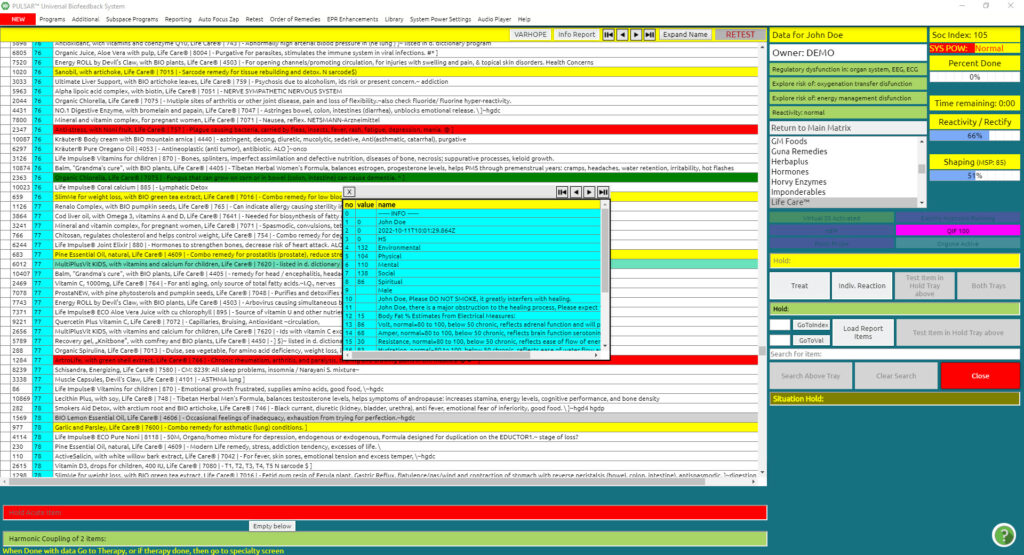
The blue info grid, lists all the details from the VARHOPE panel, as a reminder. It also lists reactions to stress in categories of Environmental, physical, mental, social, and spiritual.
The highest numbers indicate the general area of reactivity for today.
You can also retrieve this panel by
Reporting (from the top bar in the Main Matrix) drop-down menu
Show Info Report
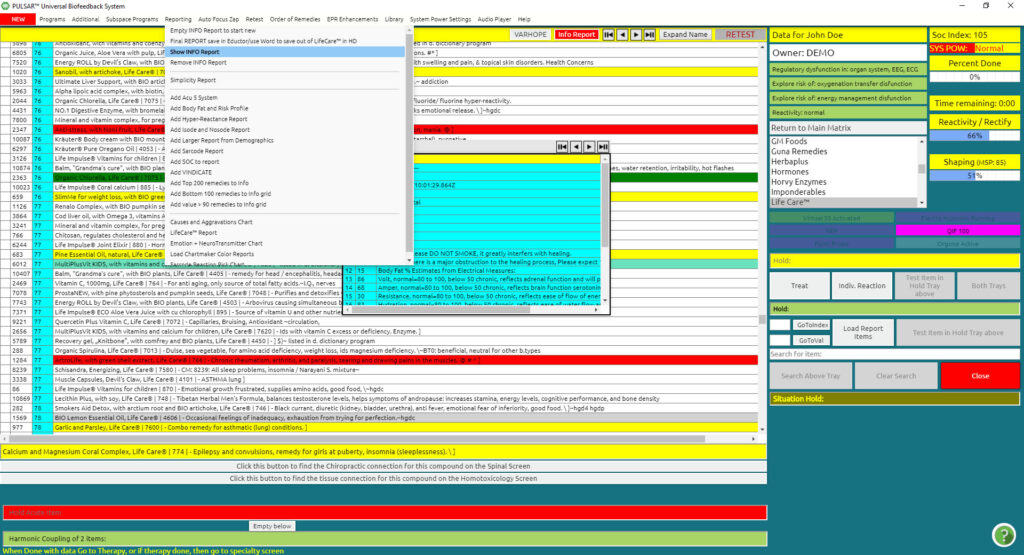
The blue info box will then appear.
The blue info box is a fantastic feature, and basically very versatile on how you wish to work it. It can be utilized as:
- a “system tray function” for multiple zapping training for 1, 3, or 9 minutes,
- “testing” against other filters in order to obtain additional information on the group of items you have loaded, or
- as a “Piggyback field” for entraining multiple items together while you are working on your other main program therapies.
Reporting (from the top bar in the Main Matrix) drop-down menu
Empty INFO Report to start new
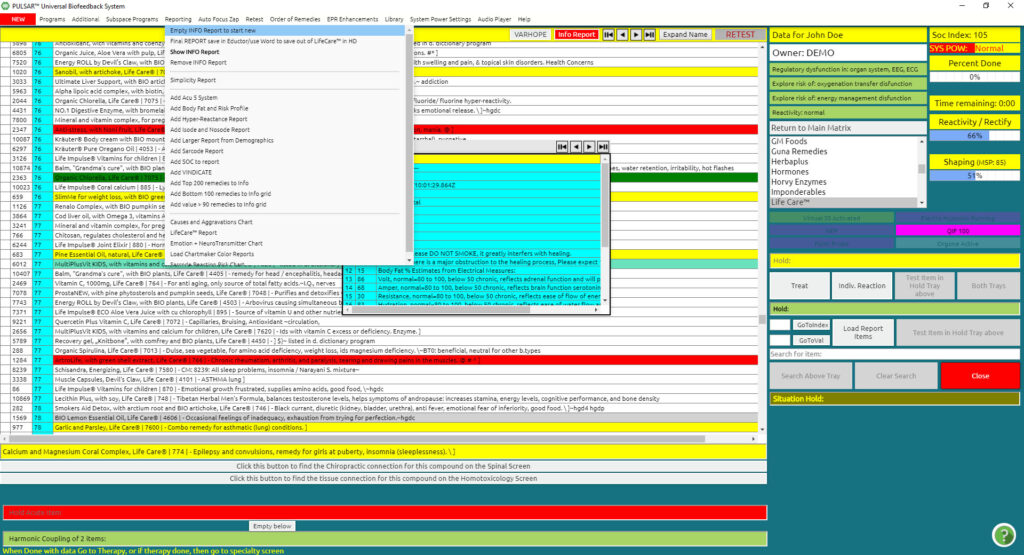
A prompt will come up
“Are you sure? Empty INFO table”
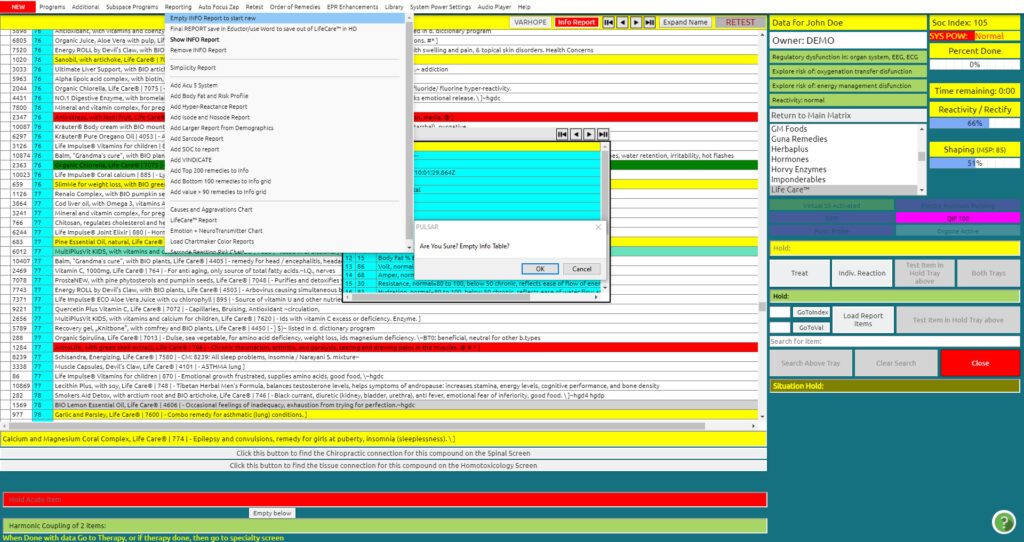
OK
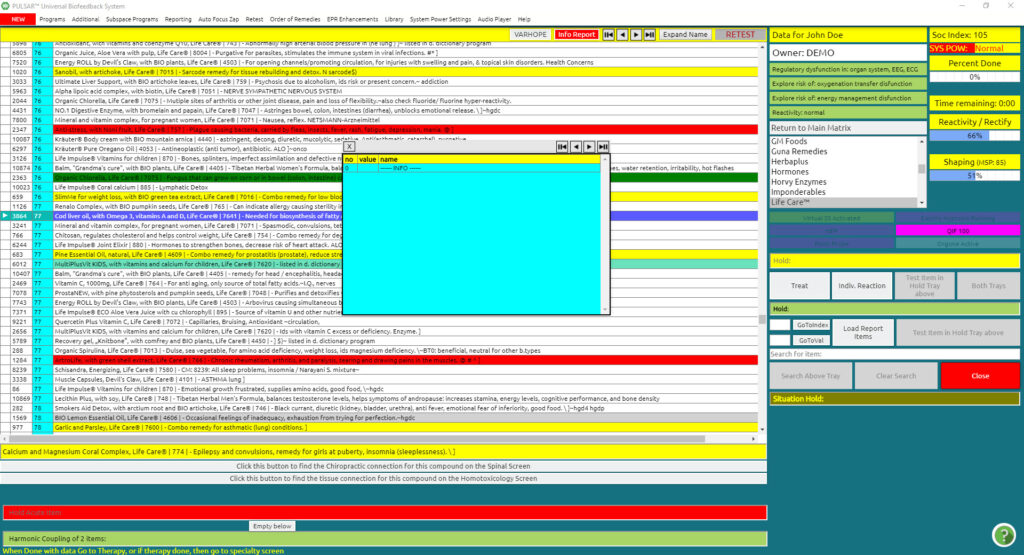
And the INFO box shall empty
You can now drag and drop anything you wish in the info box in order to make a cocktail therapy. If you are working as a system tray function” for multiple zapping, it is a good idea to add up to a maximum of eight items in the blue INFO box. You then Load Report, as explained in the process a little further below. You can repeat the process as many times as you wish.
On the other hand, when working with the blue INFO box as a “Piggyback field” for entraining multiple items together, you can add as many items as you wish.
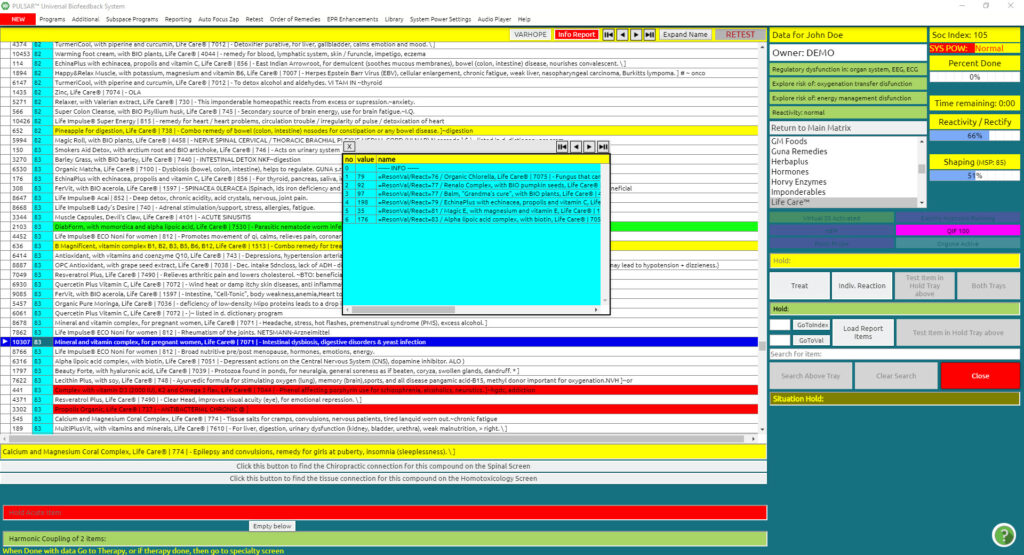
Automatic Options:
From the Information drop-down menu, you have the option to also
- load the top 200 remedies from the main matrix – Reporting to the INFO box, or
- bottom 100 items from the main matrix – Reporting
- or items > 90 reactivity from filtered items
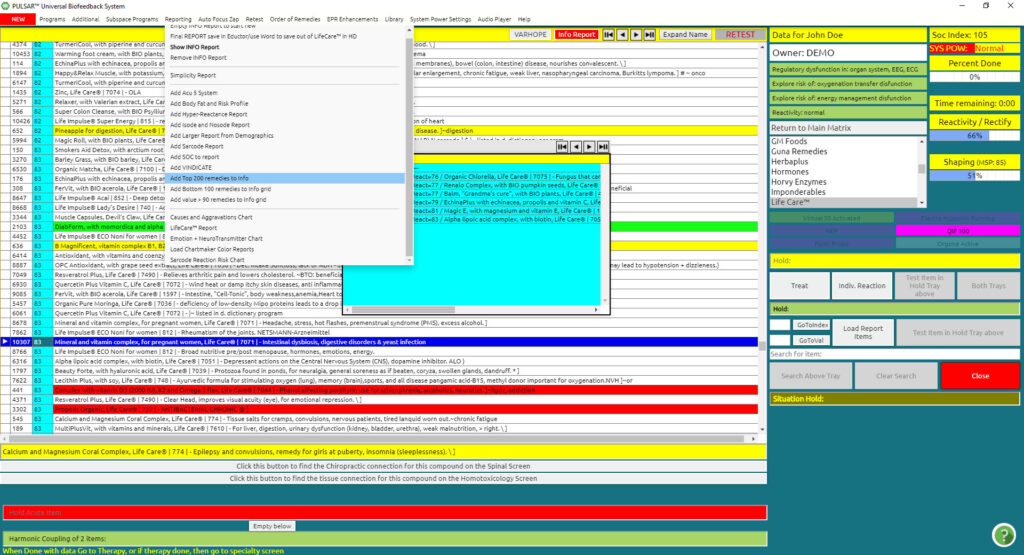
Furthermore, there are other options of information in the Reporting drop-down menu that you can add to the report, most of which though you have to go to various areas in the program to load them so that they can be open to also loading from here to the info box. One option which is ready to be used after your Testing is the Add Hyper Reactant Report.
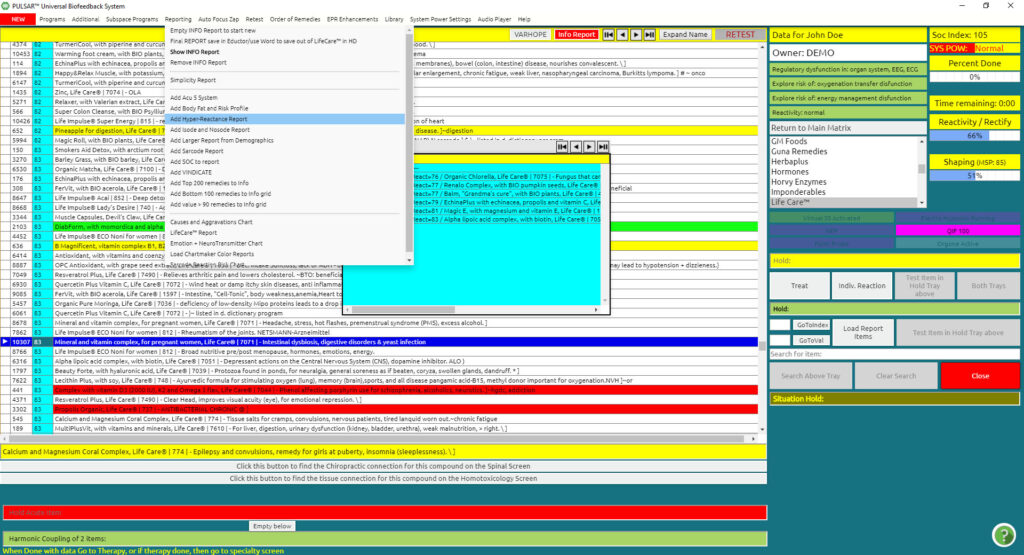
Therefore, depending on what you wish to work on you, you may follow the below process
Load Report
To load the items for therapy you have put them in the Info Report box
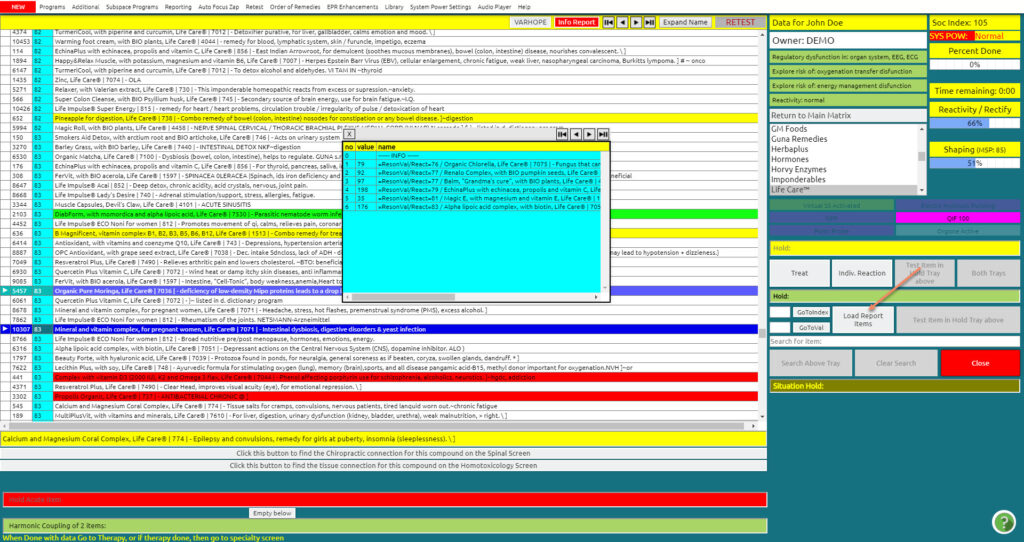
Once you click on the “Load report items” button, you will notice now the same button shows “Unload items” if you wish to unload the report (either to add additional items in the blue box or to stop working on the items)
This means that the items in the blue Info reporting box are now loaded for
- treating,
- zapping,
- testing (individual reaction of the group of items),
- test item of the holding tray above (that is the report items loaded in the blue info box)
- or piggyback training.
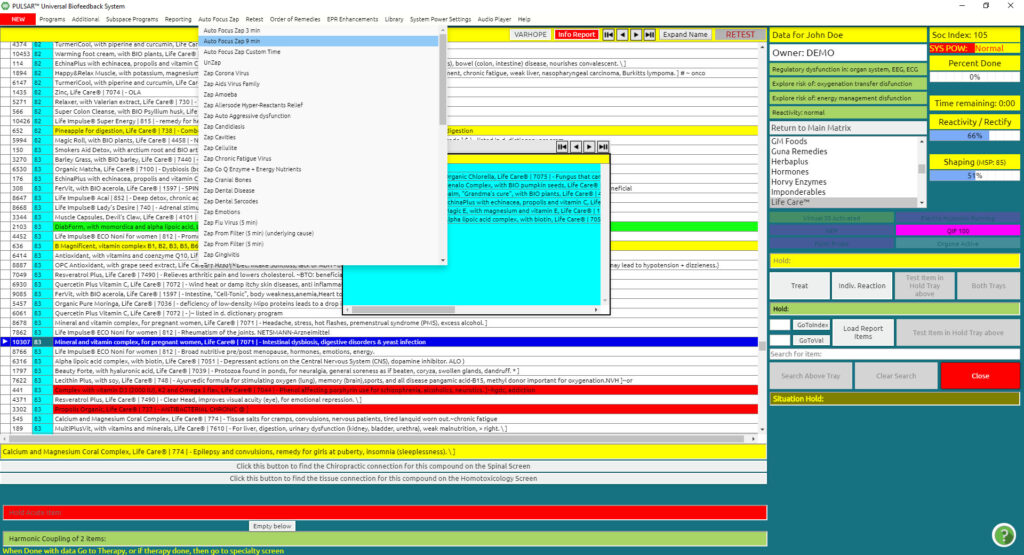
You may click from Auto Zap Bio Resonance Zap drop-down menu, autofocus 3min zap, or autofocus 9 min zap. This will switch the Treat button on the side to either ZAP 3 min or ZAP 9 min.
By having the report loaded, you may either Treat (which is a few seconds), ZAP 3 Min, or ZAP 9 min., or just the fact that the items are loaded, they work as piggyback training during your entire session.
Additionally, you may choose to do an Individual Reaction on these loaded items, it will give you an average profile of the group of items tested together in the INFO box, Click Test Report.
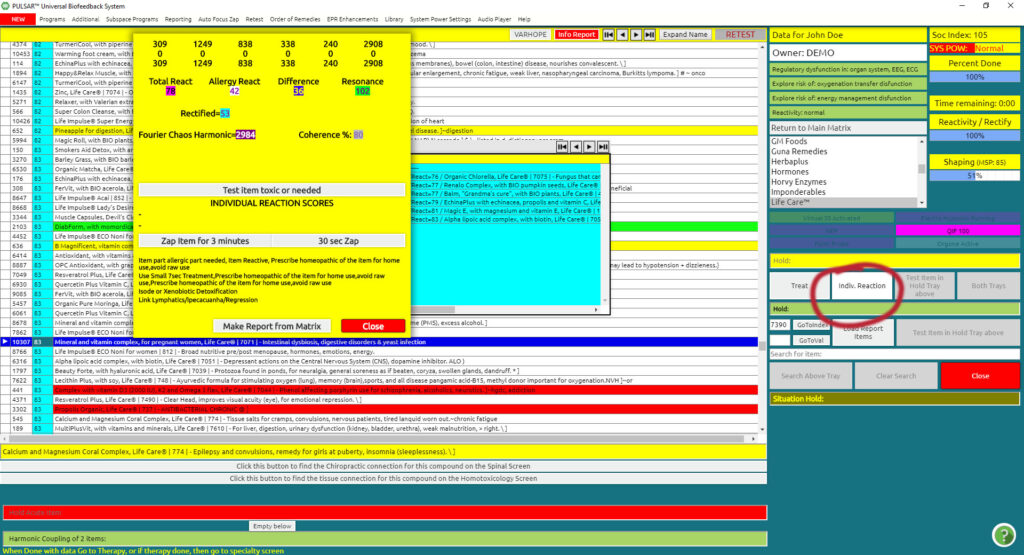
Here you can interpret Results, you have the option to do a 30-sec zap, or you can do a 3-minute zap.
Furthermore, once the items are loaded.
As mentioned, the button “test items in hold tray above” is also activated so as to test against filters. This will give you more background information concerning the items you are testing. Depending on the subfilter you have chosen, it will give you four yellow lines as additional information pertaining to the group of items you have loaded and are testing.
When working as a “piggyback” therapy, all the items you have loaded in the blue Info Report box, and as long as the Report items Loaded appears, each time you are working on any therapy in the software, and the LifeCare Panel is working, you are also working these items as a piggyback.
Going through the above choices and options of working a couple of times will help you get a better understanding of the potentiality and infinite possibilities. Working with the Info Report box helps in making your session more focused and more effective. Practice makes perfect.